Icons
V-Control introduces three character sets from Font Awesome 6 for displaying icons.
The font file paths are:
.\src\Resources\Fonts\Font_Awesome_6_Brands-Regular-400.otf
.\src\Resources\Fonts\Font_Awesome_6_Free-Regular-400.otf
.\src\Resources\Fonts\Font_Awesome_6_Free-Solid-900.otf
These correspond to three aliases:
"FontAwesome-Regular""FontAwesome-Solid""FontAwesome-Brands"
Usage
In XAML, you can specify any control that displays text to show an icon, such as: Label, Button, Editor.
- Set the
FontFamilyproperty to"FontAwesome-Solid"or another character set alias. - Set the
Textproperty to the icon name or the icon's Unicode code.
Both the icon name and the Unicode code can point to the same icon. The following two examples are equivalent:
Name
  <Label FontFamily="FontAwesome-Solid"
         Text="user"></Label>
Unicode Code
<Label FontFamily="FontAwesome-Solid"
Text=""></Label>
You can dynamically set icons through data binding. In the CodeBehind, you need to use the escape character format for Unicode codes.
 <DataTemplate>
     <Grid RowDefinitions="*,auto"
           Margin="20,2.5">
         <Label TextColor="{Binding TextColor}"
                FontFamily="{Binding FontFamily}"
                FontAttributes="Bold"
                FontSize="40"
                HorizontalOptions="Center"
                Text="{Binding Icon}"></Label>
         <Label Text="{Binding Title}"
                Grid.Row="1"
                HorizontalOptions="Center"
                Style="{StaticResource ItemDetailsLabel}" />
     </Grid>
 </DataTemplate>
CodeBehind
IconItemList = new ObservableCollection<dynamic>(){
    new { Title= "house"  , Icon="\uF015", TextColor="Red",  FontFamily="FontAwesome-Solid"},
    new { Title= "magnifying-glass"  , Icon="\uF002", TextColor="green",  FontFamily="FontAwesome-Solid" },
    new { Title= "user"  , Icon="\uF007", TextColor="orange" ,  FontFamily="FontAwesome-Solid"},
    new { Title= "facebook"  , Icon="\uF09a", TextColor="blue" ,  FontFamily="FontAwesome-Brands"},
    new { Title= "check"  , Icon="\uF00c", TextColor="green" ,  FontFamily="FontAwesome-Solid"},
    new { Title= "download"  , Icon="\uF019", TextColor="Red",  FontFamily="FontAwesome-Solid" },
};
The result is as follows:

How to find the encoding and character set of the icon you need?
Go to the official Font Awesome 6 site (https://fontawesome.com/search).
Enter the icon name in the search box and press Enter.
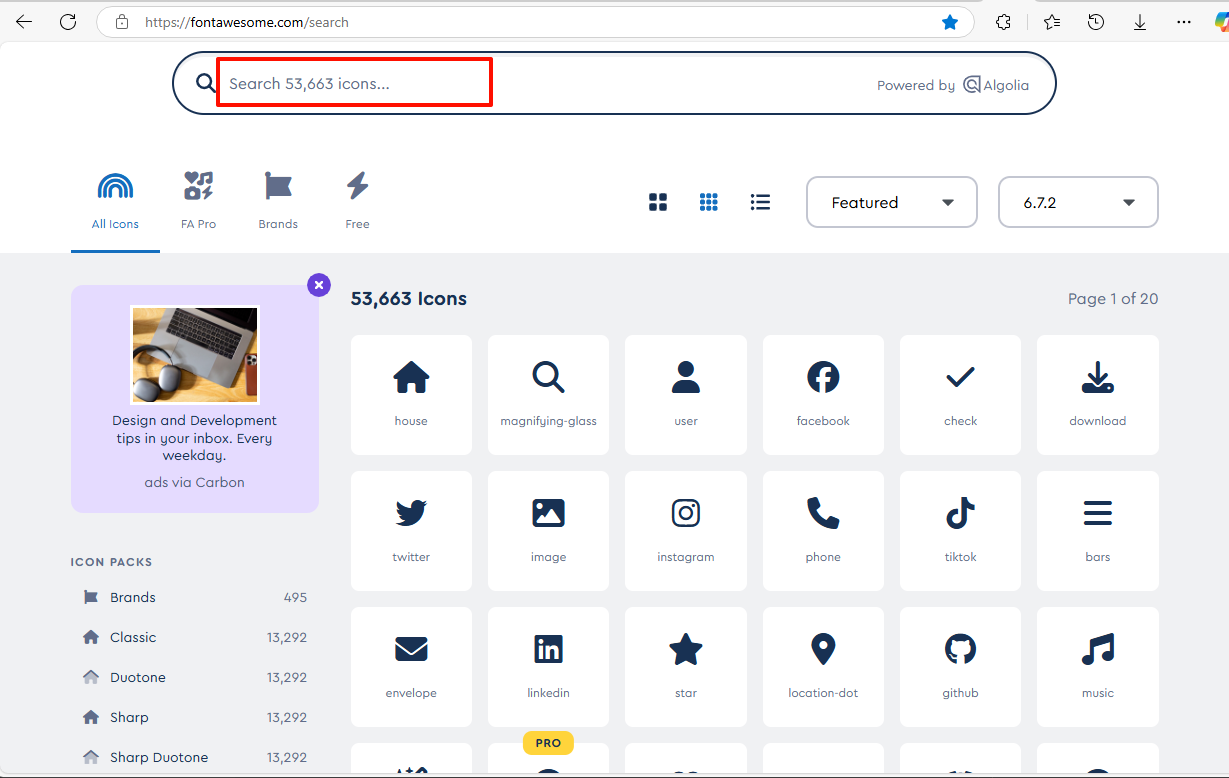
Click on the icon you need, and in the pop-up window, find the Unicode code and copy it.
The example code below shows the character set where the icon is located.